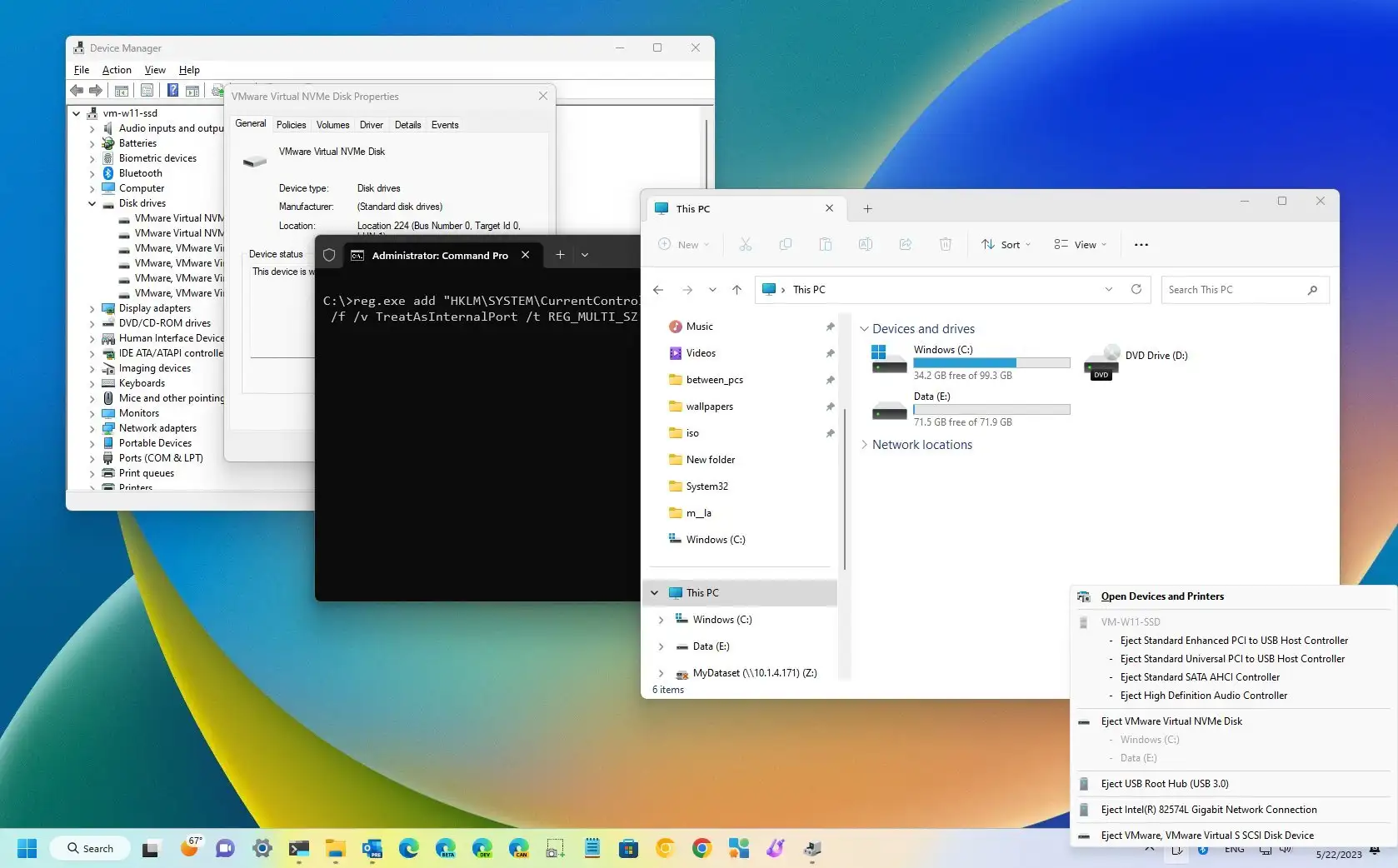
Windows 11 Bug Blocks Drive C Access and Cripples Some PCs
The headline is blunt because the problem is blunt: a recently confirmed Windows 11 bug has left some users unable to access their C: drive — the system volume where Windows, programs and personal data live — effectively crippling affected machines. For many people and organizations this is more than an inconvenience; it can halt work, destroy productivity, and, in the worst cases, threaten data integrity. This article walks through how the bug shows up, what likely causes are, immediate steps you should take, how IT teams can respond, and sensible long-term defenses to reduce risk.
What Happened — The Big Picture
Reports started to surface when users began finding the C: drive missing or inaccessible after a Windows Update or after a reboot. On affected systems File Explorer returned errors when accessing C:, installers failed, and in many cases Windows refused to boot normally. Microsoft has acknowledged the fault in affected builds and rolled a path toward a fix, but acknowledgement alone doesn’t restore files or productivity. Understanding the symptoms and acting quickly is essential.
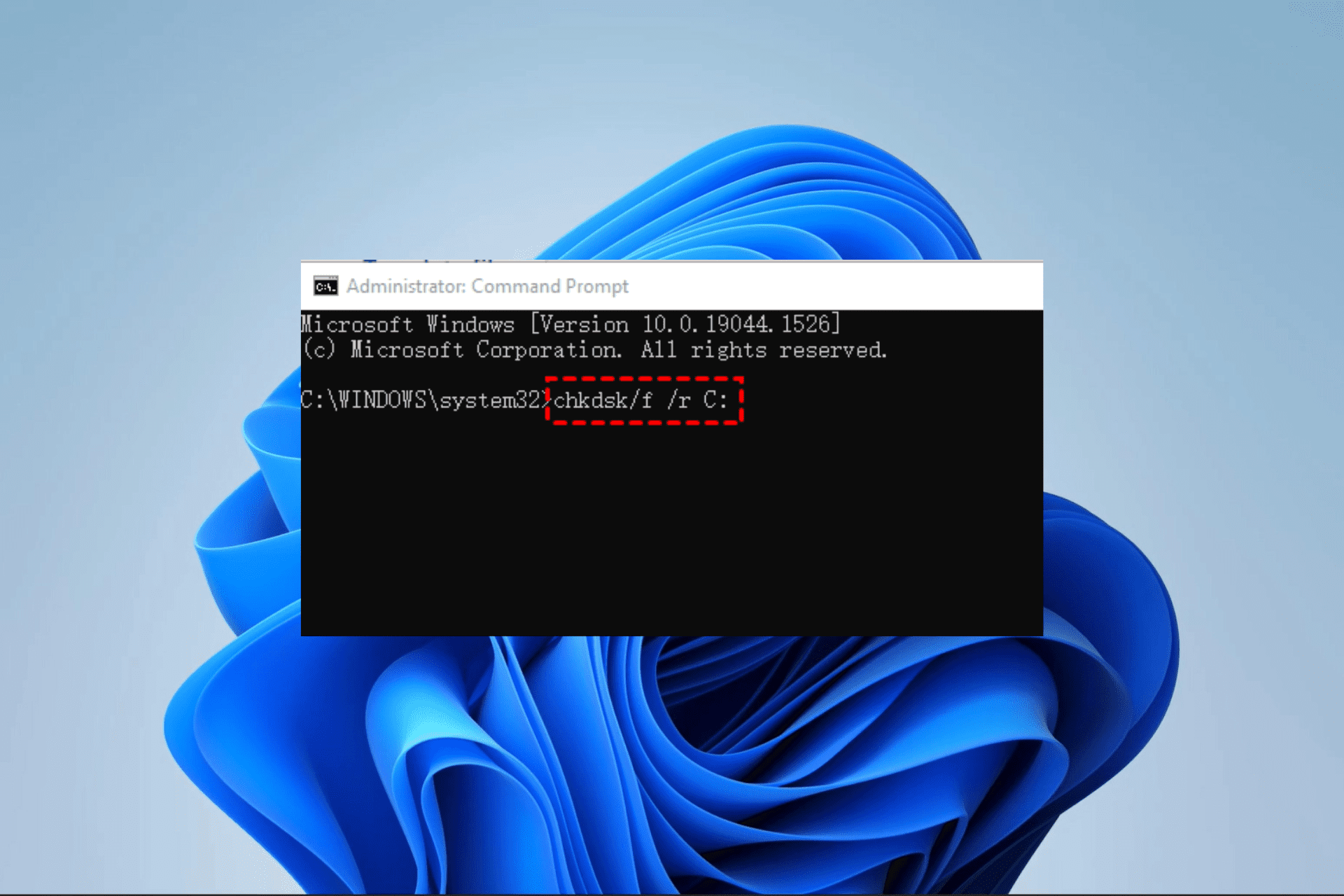
Windows 11 C drive inaccessible error
How users typically see the problem
There are a handful of consistent, repeatable symptoms that should trigger immediate attention:
- Missing or inaccessible C: drive in File Explorer or Disk Management.
- Boot errors such as loops back to recovery, or Windows starting into the recovery environment rather than desktop.
- Applications failing to start because system paths cannot be resolved.
- BitLocker prompts or encryption errors on systems where the drive was previously encrypted.
- Event Viewer logs showing disk, file system, or driver errors after the last update or shutdown.
For many users the first sign is a single, terrifying message: Windows can't access drive C: — and suddenly your machine is a paperweight.
Technical explanation — what could cause C: to be inaccessible?
When the C: drive becomes inaccessible it’s rarely a single simple failure. The symptom is a consequence of the system being unable to mount, decrypt, or read the system partition. Likely technical culprits include:
1) Update-related driver or filter conflicts
Windows updates can change, install, or interact poorly with storage filter drivers (third-party antivirus, disk encryption tools, or vendor NVMe drivers). If a critical filter driver fails to load or registers incorrectly, the operating system may be unable to complete mounting of the system volume.
2) Boot configuration corruption
Problems updating or writing the Boot Configuration Data (BCD) can leave Windows unable to find or mount the correct partition at startup. Even if the disk is physically fine, misconfigured boot records can make the volume inaccessible to the running OS.
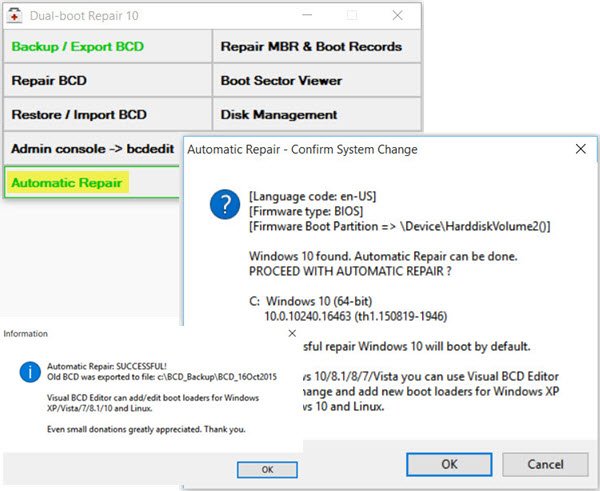
Windows 11 boot configuration data BCD
3) Encryption or key-handling failure
Systems using BitLocker or third-party full-disk encryption rely on correct key management. An update that changes driver ordering, TPM behavior, or the encryption filter stack can prevent unlocking the volume at boot.
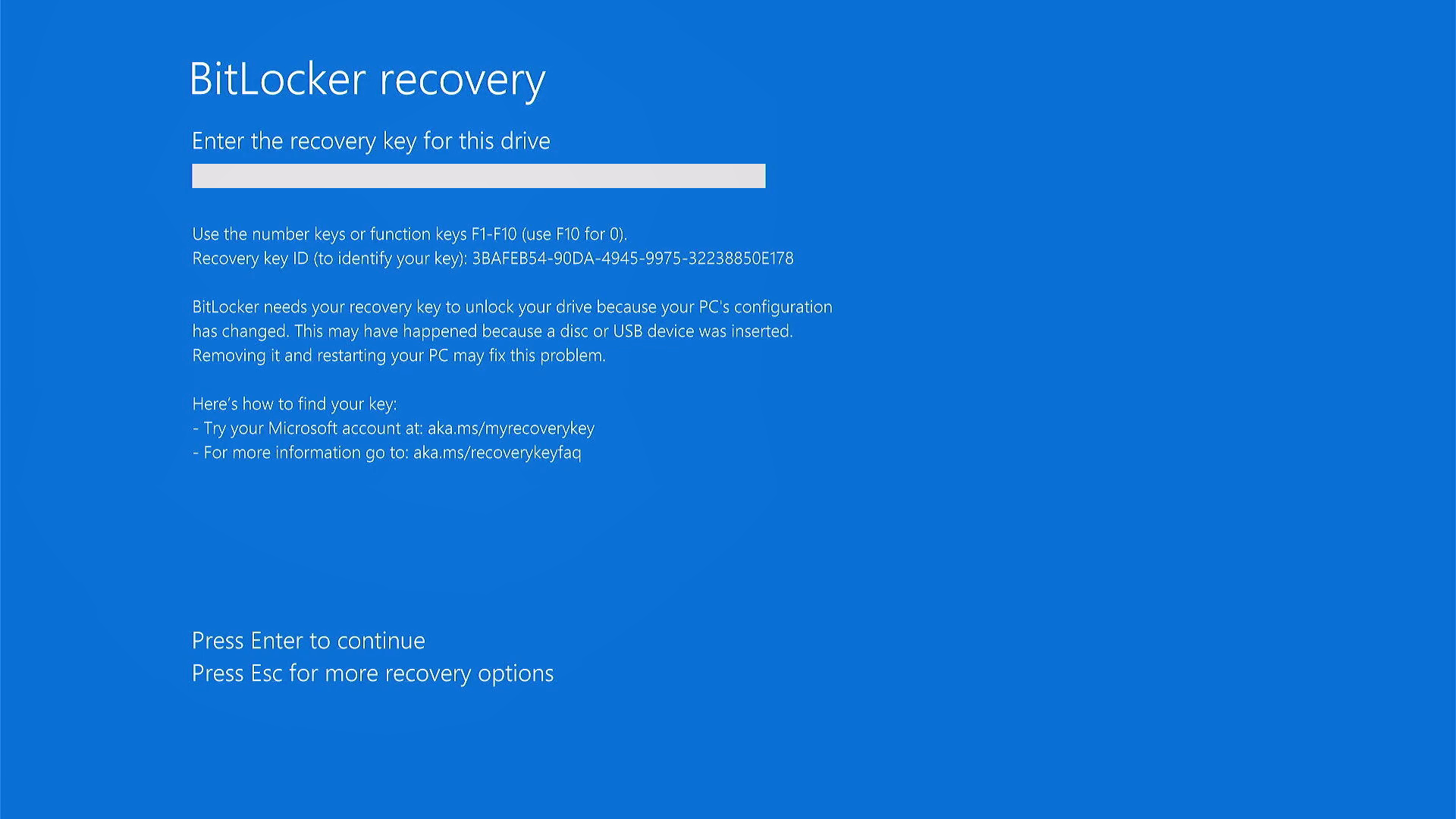
Windows 11 BitLocker encryption failure
4) File system corruption
Although less common as an immediate cause of a mass problem, a failed update sequence can coincide with write errors leaving the NTFS metadata inconsistent. When NTFS metadata is corrupted the OS may refuse to mount the volume to prevent further damage.
Immediate steps for end users — what you should do right now
Stop. Breathe. Your next action determines whether recovery is easy or impossible.
Step A — Don’t panic; collect information
Before changing settings or running disk-altering commands, record exactly what you see: screenshots of error messages, the last update installed (if known), and whether BitLocker or another encryption tool was active. If you manage multiple machines, document which ones are affected and whether they share common updates or drivers.
Step B — Boot to Windows Recovery Environment (WinRE)
If the system won’t boot to the desktop, boot to the Recovery Environment by holding Shift while choosing Restart, or by using a Windows recovery USB. From WinRE you can try Startup Repair, roll back the last update, or open a Command Prompt for more advanced diagnostics.
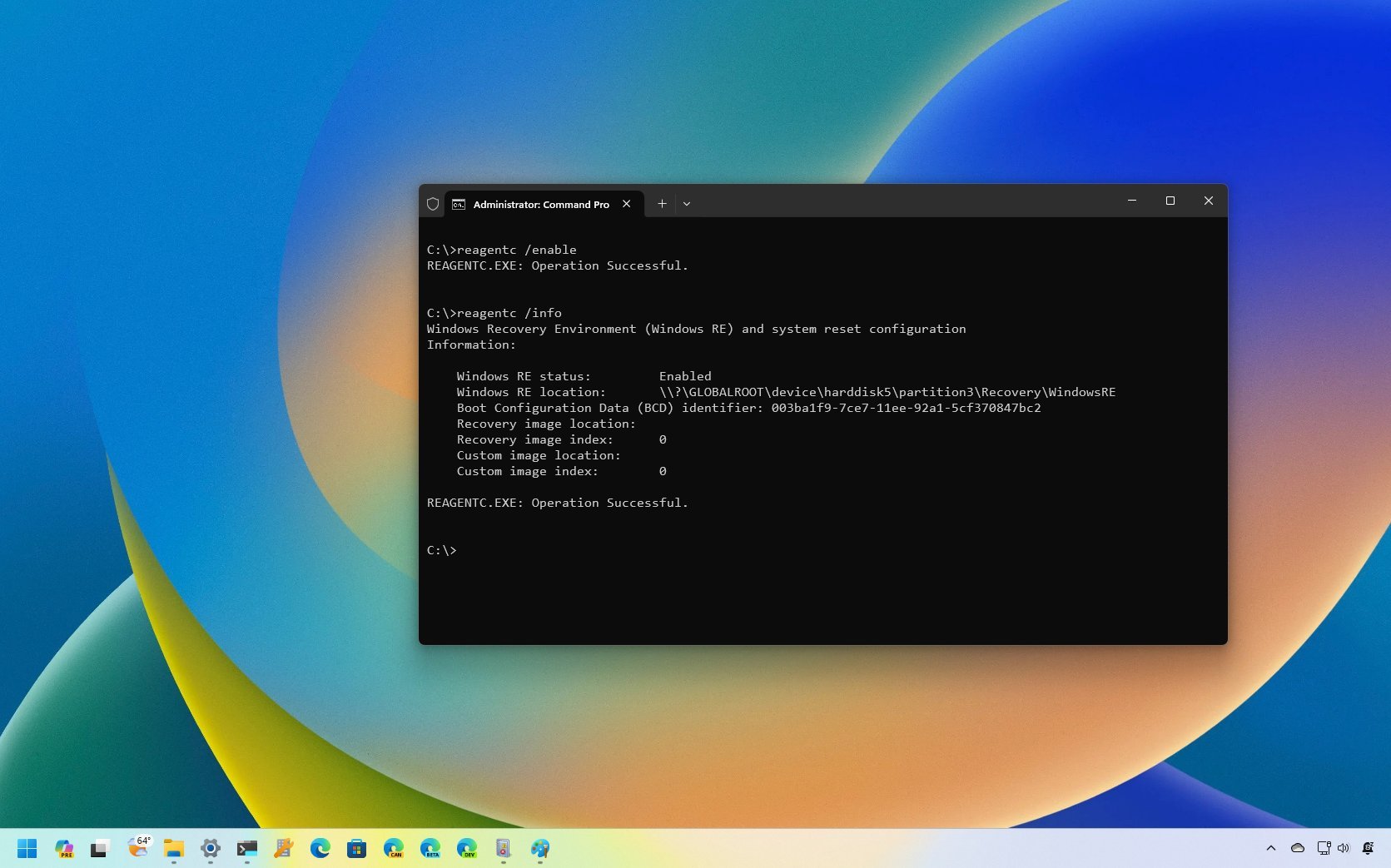
Windows 11 Recovery Environment WinRE
Step C — Try Safe Mode
Safe Mode starts Windows with minimal drivers. If the C: drive is visible in Safe Mode, the problem points to a driver or filter active in normal mode. From there you can uninstall recent updates or third-party software that modifies disk access.
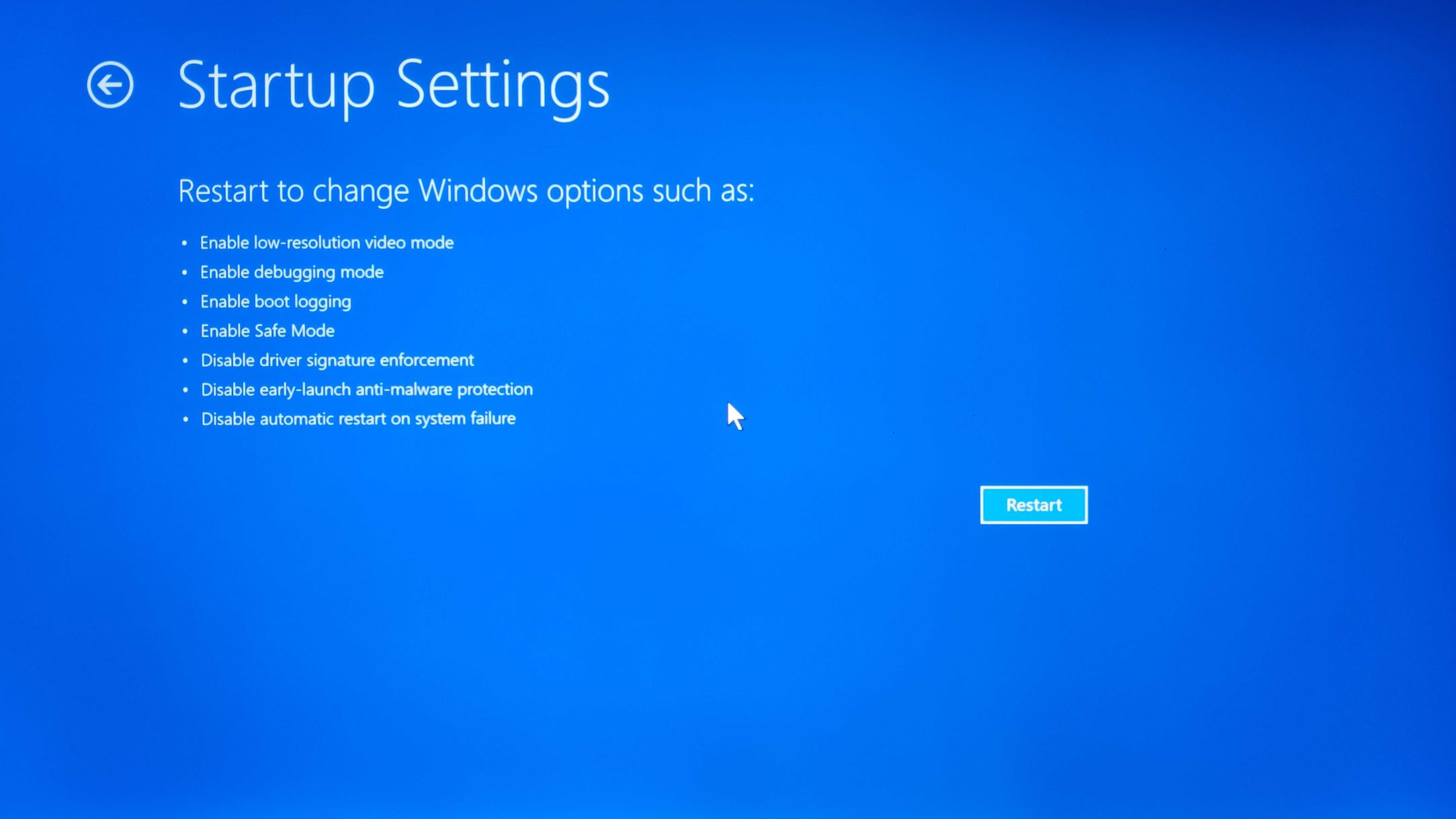
Windows 11 Safe Mode startup
Step D — Create a backup or disk image
If the drive becomes accessible even briefly, make an image or copy critical files to an external drive. Tools built into WinRE or third-party recovery USBs can clone the partition. A verified backup is insurance against missteps.
Step E — Uninstall the latest updates
In WinRE you can uninstall the most recent feature or cumulative update. If the issue is tied to a specific update, rolling back may restore access quickly. After rollback, do not reinstall the same update until Microsoft issues a fixed package.
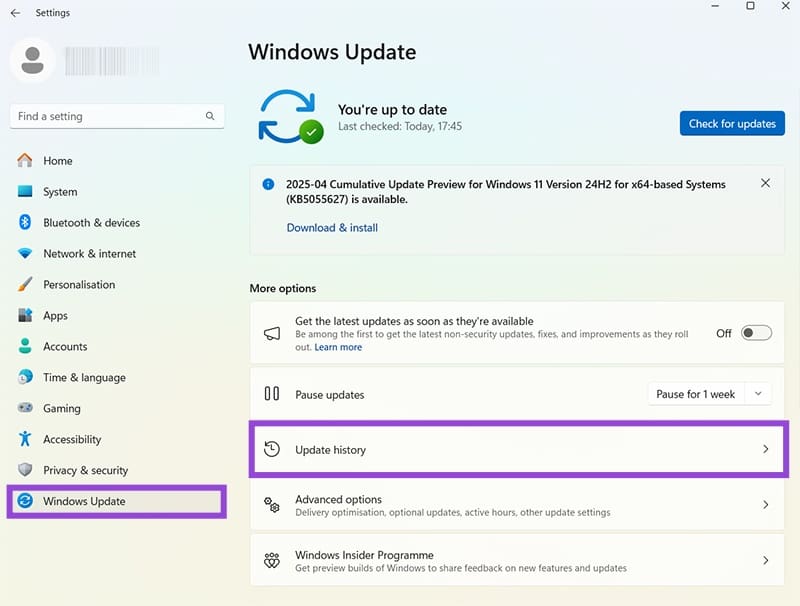
Windows 11 update rollback steps
Step F — Disk checks and system file repair
From Command Prompt in WinRE run utilities carefully: use chkdsk to find and fix file system errors, and run sfc /scannow or DISM to repair system files if the volume is mountable. If BitLocker is involved, you may need to unlock the volume first with manage-bde or the recovery key.
When in doubt, back up. The only irreversible action is losing the chance to back up when you could have.
Advice for IT teams and administrators
For IT teams the incident is a test of update processes and rollback plans. Here’s a practical checklist teams should run:
- Isolate affected machines to avoid broad disruption and to prevent automatic reinstallation of updates by WSUS or SCCM.
- Check telemetry and update timelines to correlate when the issue began and which updates were pushed.
- Prepare a rollback image and a clean recovery USB with the exact build that was stable for your environment.
- Communicate clearly with users: provide step-by-step instructions for safe backup and recovery, and set expectations about downtime.
- Test the fix on a wide matrix of hardware and encryption configurations before allowing updates to resume broadly.
A good patch strategy assumes failures: test, stage, and have rollback ready.
When to call a professional data recovery service
If disk metadata is corrupted or the drive reports physical faults (clicking, bad sectors, or SMART failures), stop DIY recovery. Professional services can image failing media in a controlled manner and may recover data that casual tools cannot. Costs vary, but for critical business data the cost is often justified.
If the drive is physically failing, every write reduces the chance of full recovery.
Long-term prevention — hardening your environment
One-off bugs expose deeper weaknesses in how we manage updates and protect data. Practical long-term measures include:
- Robust backup policy with offsite and offline copies; test restores regularly.
- Staged update deployment with canary and pilot groups before broad rollout.
- Inventory and test of third-party filter drivers and encryption tools; keep vendor drivers up to date and verify compatibility.
- Use of system images to expedite recovery to a known-good state.
- Documentation and runbooks so helpdesk and admins can respond quickly and consistently.
What Microsoft and vendors can do
Large-scale issues like this call for coordinated vendor action: transparent communication about affected builds, rapid replacement updates, and clear removal or blocking instructions for bad packages. Vendors of disk filter drivers and encryption software should prioritize compatibility testing with new Windows releases to avoid these interactions.
The easier it is to roll an update forward, the faster organizations can recover — but only if update telemetry and communication are clear.
- Clear rollback paths can restore operations quickly.
- WinRE and backup images limit long-term damage when used early.
- Unplanned downtime and lost productivity for affected users.
- Potential for data loss if backups are missing or recent updates caused corruption.
Key takeaways and final advice
- Act quickly but calmly: document and back up before making changes.
- Boot to WinRE and use rollback or Safe Mode to isolate driver-related causes.
- IT teams must block affected updates, test fixes on representative hardware, and communicate with users.
- Long-term defense is about backups, staged updates, and vendor testing.
For anyone using Windows 11 the most important practical rule is simple: prepare for failure the way professionals do. Keep current, verified backups, keep encryption keys and recovery keys safe and accessible, stage updates, and maintain a recovery USB or image for each major hardware class you support. When the rare but serious bug shows up, these precautions are the difference between a short interruption and a catastrophic loss.
If you are affected: document error messages, do not overwrite the disk, and contact support or your IT administrator before attempting destructive fixes.
In a software ecosystem as large and diverse as Windows, bugs that interact with storage and encryption are always high risk. The immediate focus is restoring user access and protecting data; the secondary priority is learning from the incident to harden systems and processes so the next inevitable problem causes less damage. With the right triage, rollback plans, and backups, most users and organizations will recover — but the event should serve as a reminder that robust preparation matters more than luck.