
Why YouTube No Longer Plays in the Background — What to Do
It’s jarring: you tap to a different app, or lock your phone, and the music or talk show you were streaming on YouTube stops cold. For many people who rely on YouTube for podcasts, lectures, ambient music, or hands-free listening, background playback is an essential convenience. If your copy of YouTube has stopped running when it’s not the foreground app, it’s not necessarily a bug — it’s the intersection of product design, business priorities, device rules, and copyright obligations. This feature change affects how we listen, multitask, and value subscription services. Below I explain why background play is limited, when it’s enabled, safe and legal alternatives, and practical steps to restore a similar experience without risking account penalties.
UNDERSTANDING BACKGROUND PLAY: WHAT IT IS AND WHY IT MATTERS
Background playback means audio (and sometimes video) continues to play when an app is not visible — for example, when your phone screen is locked, when you switch to another app, or when you close the browser tab. For users it’s about convenience: listening to long-form content, following tutorials while following physical tasks, consuming podcasts and news while commuting, or using YouTube as a music source without having to keep the video visible.
Not all streaming services treat background playback the same. The feature touches three separate domains: the app developer’s product decisions, the platform owner’s (Google/Apple) system rules, and the content rights holders’ licensing requirements. When any of these parties opt for a restriction, background play can be limited or gated behind a paid tier.
Why background playback disappears for some users
At a high level, three reasons explain why YouTube or similar services may refuse to play in the background for certain accounts or platforms:
- Monetization and product strategy: Background audio is often reserved as a paid benefit. Keeping audio-only listeners in a paid tier helps recover ad revenue that would otherwise be lost when listeners don’t view video ads.
- Licensing and rights management: Music and some premium content are licensed under terms that restrict playback environments. Rights holders may require visible video or paid access for certain content types.
- Platform and technical limits: Mobile operating systems handle background tasks and picture-in-picture differently. If an app doesn’t request the necessary permissions or comply with platform rules, background playback may be disabled on that OS or device generation.
If YouTube stops when the screen locks, it’s usually a policy or permission decision — not random misbehavior.
THE BUSINESS CASE: WHY COMPANIES BLOCK BACKGROUND AUDIO
Streaming platforms are businesses. They make choices intended to maximize revenue and engagement. Ad-supported video platforms monetize mainly by showing pre-roll, mid-roll, and overlay ads. When a user leaves the video visible, ad impressions — and the ad dollars — are more predictable. When the app is in the background and the user is effectively consuming only audio, those visual ad impressions disappear or become less valuable. Reserving background playback for paying subscribers nudges heavy listeners toward subscriptions and premium tiers.
Licensing and copyright pressures
Music licensing is a primary reason some videos can’t be treated like generic spoken-word content. Labels and rights holders set distribution conditions. If a particular song or recorded performance was licensed only for explicit video distribution or requires a share of ad revenue that depends on a visible view, platforms must honor those constraints — which can mean blocking background-only streams or requiring a premium subscription that pays higher royalties.
PLATFORM RULES: ANDROID, iOS, AND BROWSERS
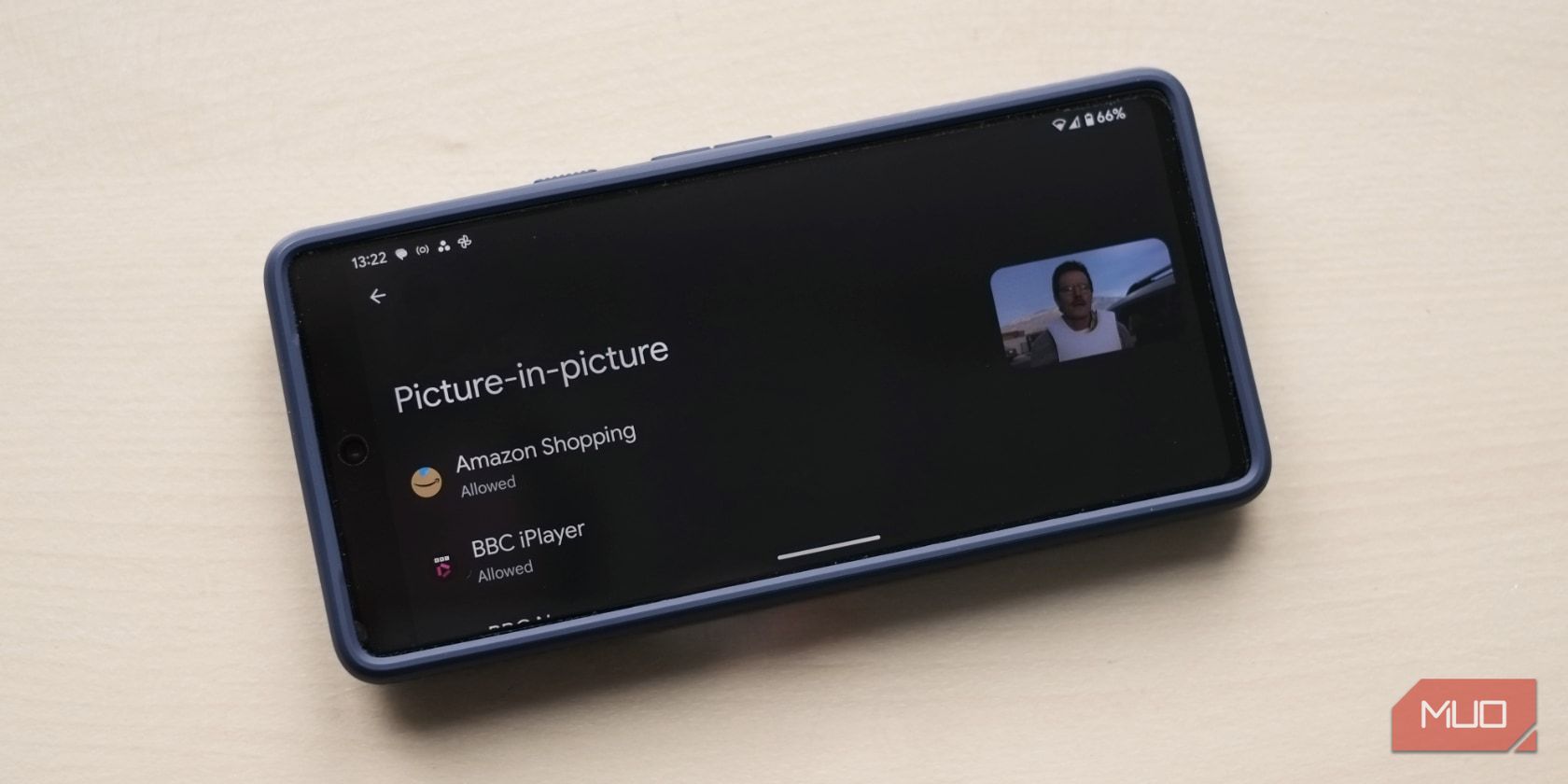
Different operating systems give apps different abilities to run in the background. Android provides a more permissive picture-in-picture (PiP) API that apps can use to continue showing video in a small overlay while the user interacts with other apps. iOS is more restrictive historically, especially around background audio and cross-app media controls, although recent versions have loosened some restrictions and offered PiP in limited scenarios.
Android Picture-in-Picture
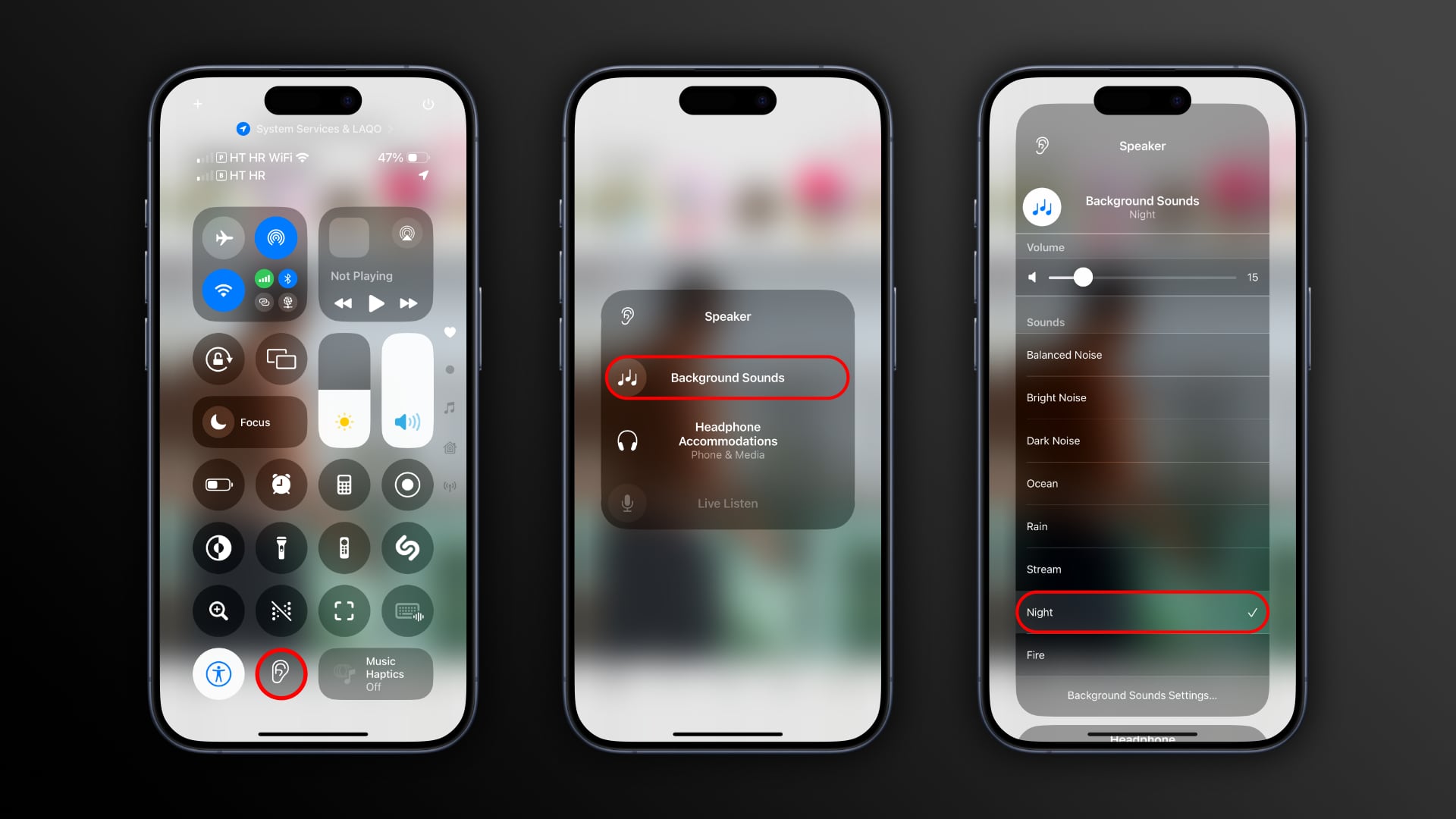
iOS background audio
Browsers are another variable. Some mobile browsers explicitly block background audio for certain sites or require a tab to remain visible. Desktop browsers typically allow background audio, but browser settings, extensions, or site-specific behavior can change that.
Why behavior varies by device and account
Not everyone sees the same behavior because of account type (free vs. paid), device OS version, region-based licensing, and app version. If you recently updated your phone or the YouTube app, the change may be tied to a new OS permission model or a policy tweak on the platform.
LEGALITY AND TERMS OF SERVICE: BE CAREFUL WITH WORKAROUNDS
There are numerous hacks and third-party apps that claim to restore background playback: modified clients, hidden settings, browser tricks, or downloading and re-uploading content. Before trying any workaround, consider the risks. Circumventing a platform’s intended restrictions can violate terms of service and, in extreme cases, put your account at risk. Third-party apps that request broad permissions or require you to sign in with your Google account can steal credentials or inject malicious code.
LEGITIMATE OPTIONS: HOW TO GET BACKGROUND AUDIO SAFELY
If background playback is important to you, here are safe, legal options that replicate the experience without undue risk.
1) Subscribe to YouTube Premium / YouTube Music
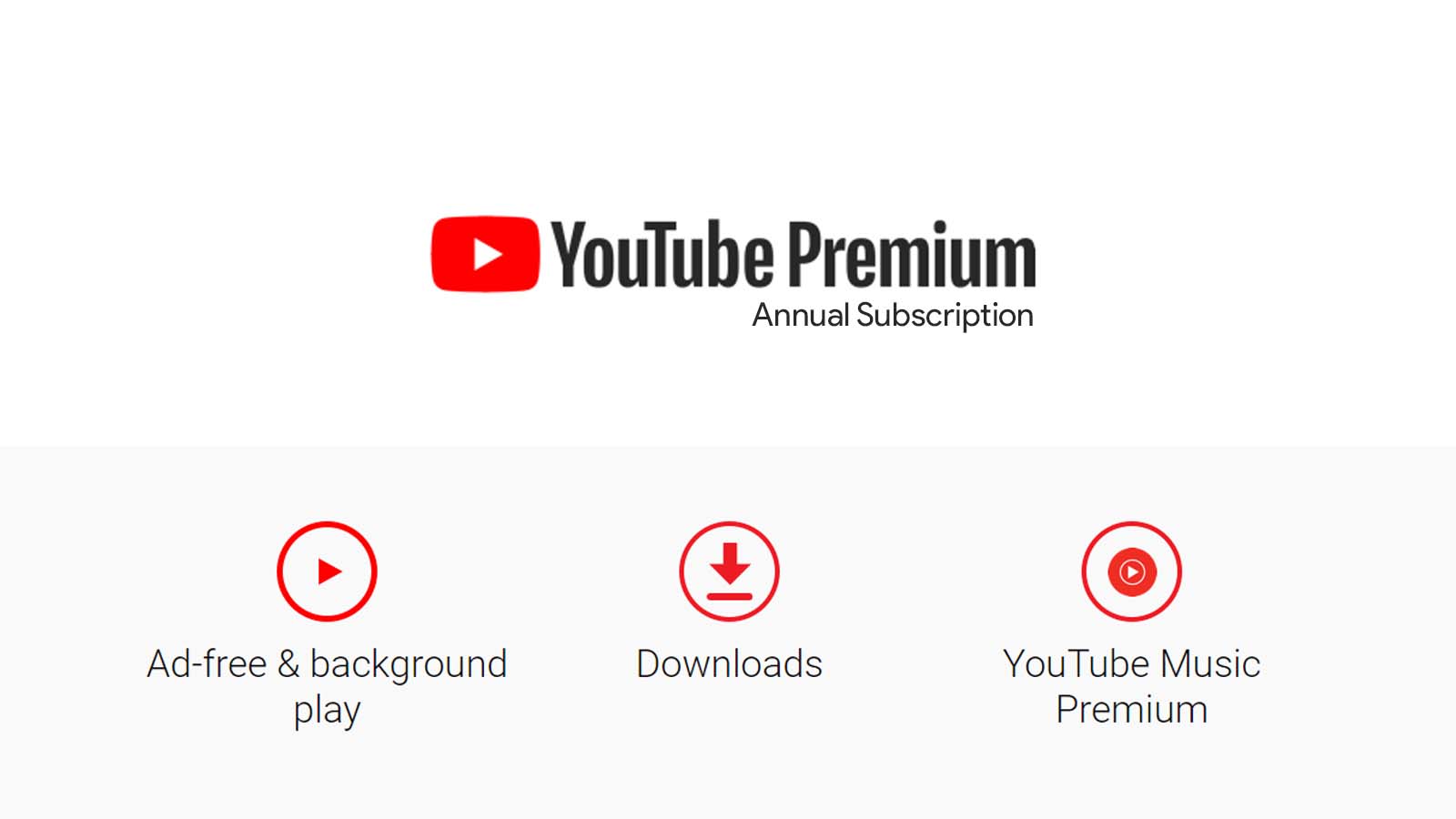
Most platforms that restrict background play will include it as a paid benefit. Subscriptions typically enable background audio, downloads, ad-free listening, and better integration with mobile media controls. If you listen often, the convenience and features often justify the cost — and you’re supporting creators through formal revenue channels.
YouTube Premium subscription
YouTube Music app
2) Use built-in Picture-in-Picture (PiP)
If your device supports PiP and the app honors it, enabling PiP will keep playback visible in a small window while you open other apps. On Android, this usually requires granting the app PiP permission in system settings. On iOS, PiP is available in some app-and-content combinations; check the in-app video controls for a PiP button or consult your device's accessibility settings.
3) Use dedicated audio apps
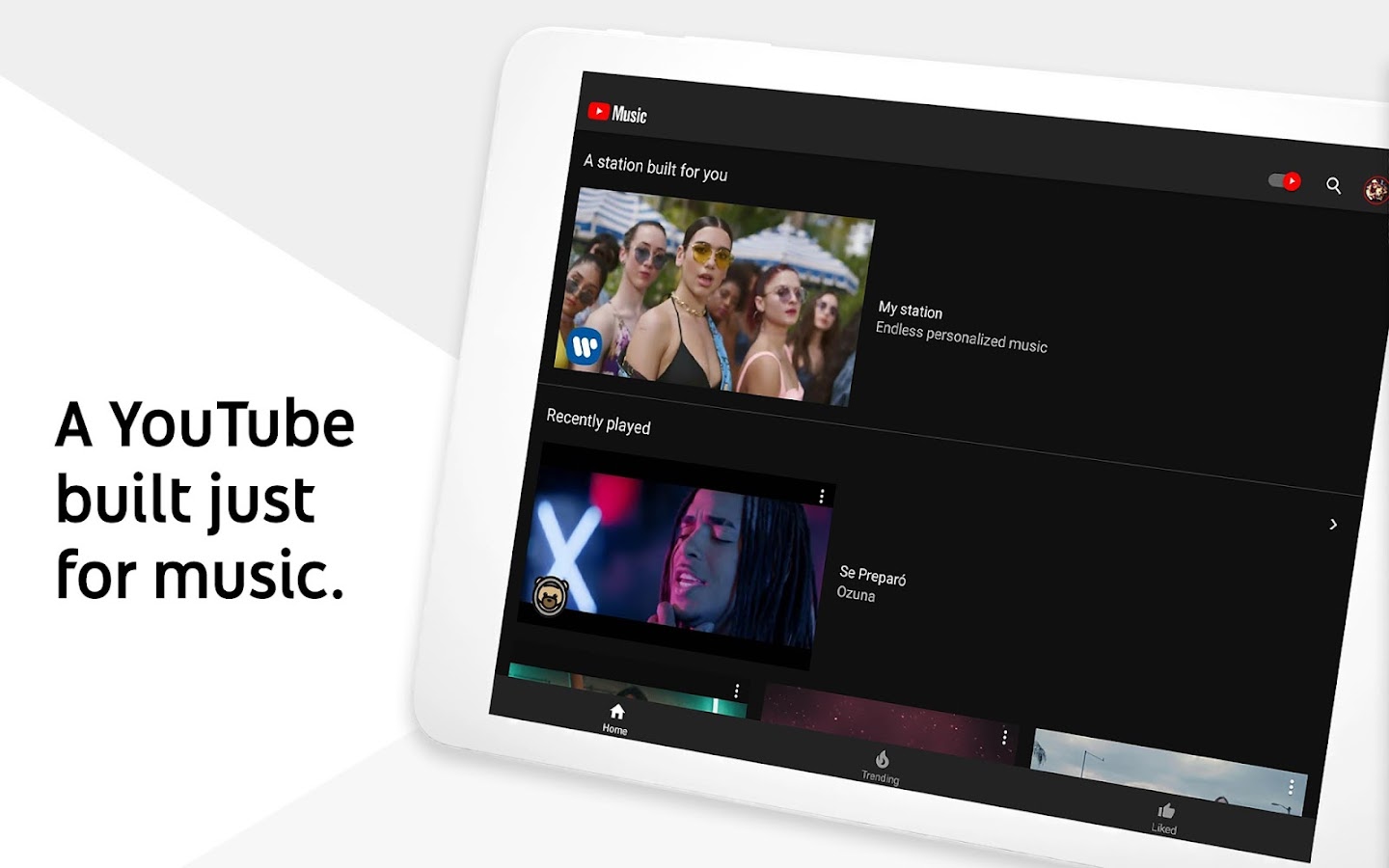
YouTube Music and other audio-first services are designed for listening. They often include background playback by default and focus on playlist and library features better suited to audio consumption — including smart offline downloads and adaptive bitrate audio to reduce data usage.
4) Browser-based approaches (with caveats)
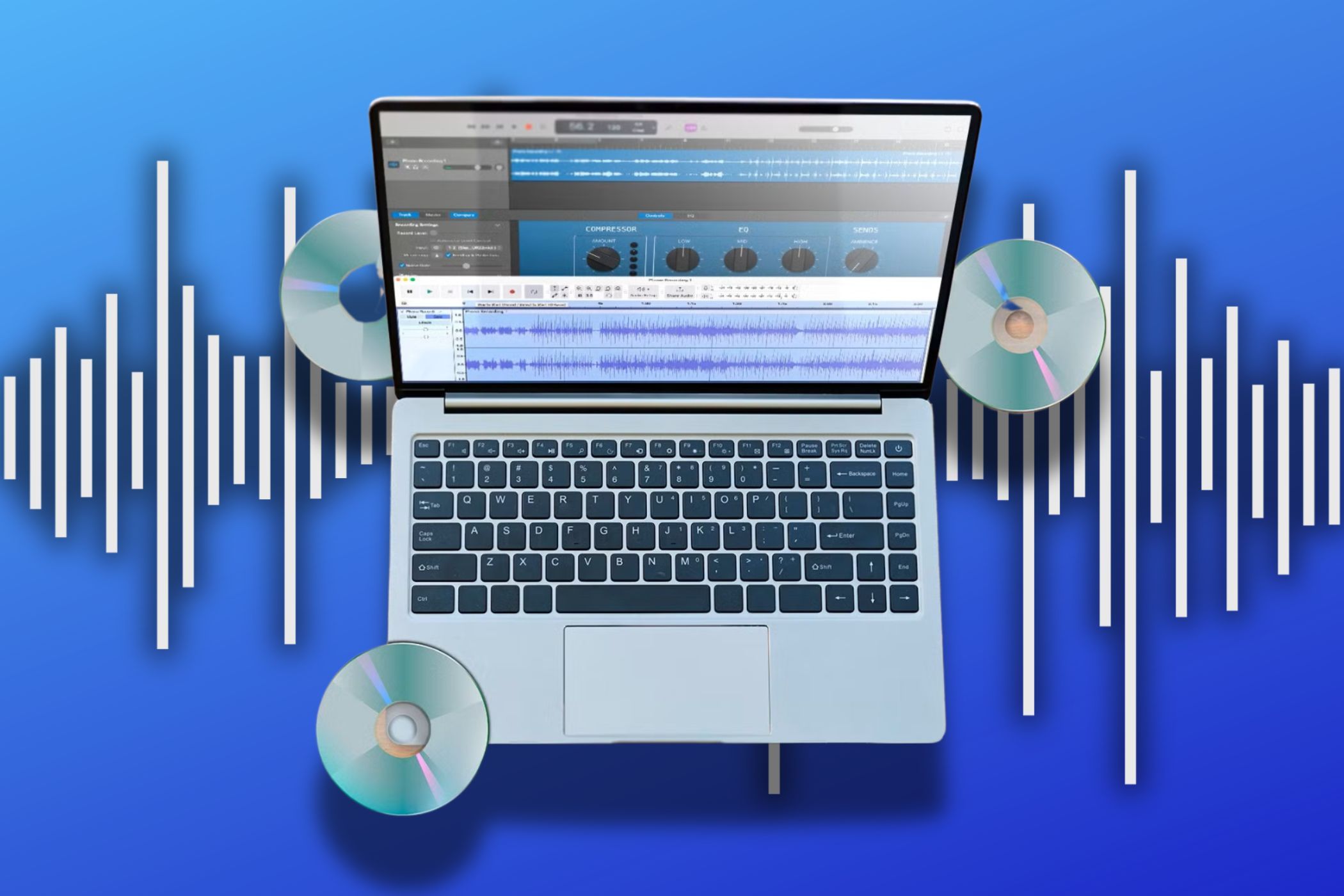
Some mobile browsers will allow background audio from a website tab. The exact steps vary by browser and OS; generally, open the video in a browser tab, start playback, then navigate away or lock the screen — and use the media controls in the notification shade or Control Center to resume audio. This trick can be inconsistent and may be blocked by the site or browser updates.
browser background audio
HOW TO ENABLE PI P AND BACKGROUND AUDIO — GENERAL STEPS
Because OS versions and device manufacturers change interfaces, the steps below are intentionally high-level and safe across recent devices.
- Android (generic): Open Settings > Apps > YouTube > Advanced > Picture-in-picture and allow it; then start a video, press Home to trigger PiP. If background audio still stops, check battery optimization and background activity permissions.
- iOS (generic): Look for a PiP icon in the video player or try the Control Center media controls after starting playback. Some content may still stop when the screen locks unless you use an official audio app or a paid tier that grants background permissions.
- Browsers: Start playback in a tab; if it pauses when locking, try the device media controls to resume. Some browsers provide a dedicated PiP button in the video context menu.
Subscribing removes guesswork: it is the simplest, most reliable way to get uninterrupted background audio while supporting creators.
PRACTICAL TIPS FOR BETTER BACKGROUND LISTENING
Small changes can improve the listening experience even without background video:
- Use playlists and queue management: Add content to a playlist or queue so you don't have to keep reopening videos between tracks.
- Download for offline listening: Offline files remove streaming interruptions and reduce data usage; they’re particularly useful for commuting or travel.
- Check battery and data settings: Some phones restrict background activity to save battery. Whitelist the app if background playback is vital.
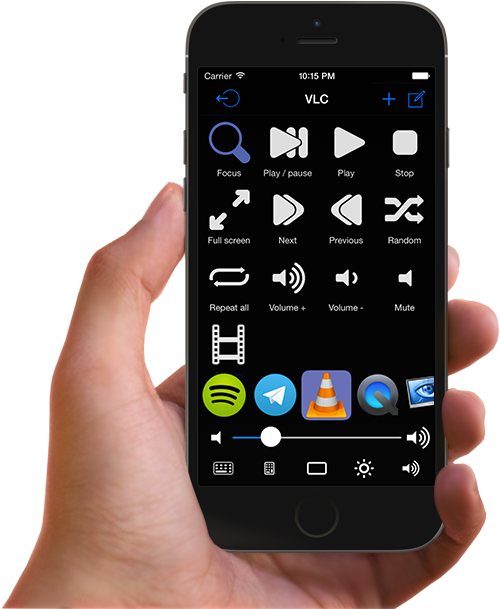
- Use hardware buttons and Bluetooth controls: Media keys on headsets and car systems can resume and skip tracks even when the app is backgrounded, as long as the OS allows background media sessions.
mobile media controls
IMPACT ON CREATORS AND LISTENERS
Changes to background playback affect both sides of the platform. For creators, background-only listeners may represent lower ad revenue per minute compared with full video views. For listeners, restrictions can be frustrating, especially when YouTube acts as a de facto podcast host. Subscription models shift revenue from ad-driven impressions to recurring payments, which can increase earnings stability for larger creators but can also change how creators structure content and sponsorships.
- Helps platforms and rights holders earn revenue.
- Encourages fair compensation for music and produced content.
- Disrupts casual listeners who rely on free background playback.
- Pushes users to paid tiers even for simple listening needs.
A NOTE ON THIRD-PARTY APPS AND UNSUPPORTED HACKS
Occasionally a third-party app or community tool promises seamless background playback. Many of these solutions are unreliable or dangerous: unofficial clients may violate the platform's developer policies, intercept your credentials, or inject ads and trackers. Even when an app appears to work, it can be shut down with little notice. If you value your account and personal data, avoid workarounds that require sharing login details outside official apps.
CONCLUSION: PICK THE SOLUTION THAT FITS YOUR HABITS
When background playback disappears from YouTube, it's not merely an annoyance; it's a choice driven by advertising economics, contractual rights, and platform technicalities. The most reliable route to restore the experience is to use features that platforms provide — subscribe to the premium tier that includes background audio, switch to an audio-first app, or enable PiP where supported. For casual users, browser tricks sometimes work, but they tend to be fragile. Above all, weigh convenience against the risks of third-party hacks.
- Background playback limitations are driven by monetization, licensing, and platform rules.
- Paying for YouTube Premium or an audio-focused app is the most reliable legal solution.
- Picture-in-picture and browser tricks can help, but behavior varies by device and app version.
- Avoid unofficial clients that request login credentials or excessive permissions.
Whether you listen to lectures, podcasts, or playlists, understanding why background play is restricted helps you choose the safest, most convenient path forward.