Why I Design with Claude More Than Figma — A Practical Guide
I started as a pixel-first designer: Figma files filled with frames, constraints, auto-layout magic and meticulously named components. Over the last two years my daily practice quietly shifted. I reach for Claude — a generative AI assistant — before opening Figma. That doesn't mean I abandoned Figma; it means I redesigned my process so the AI drives ideation, structure and many micro-decisions, while Figma becomes the place for visual refinement and production polish. This article explains why, how, and when to choose an AI-first workflow; it gives practical prompts, guardrails for collaboration and code handoff, and a realistic look at limitations and risks.
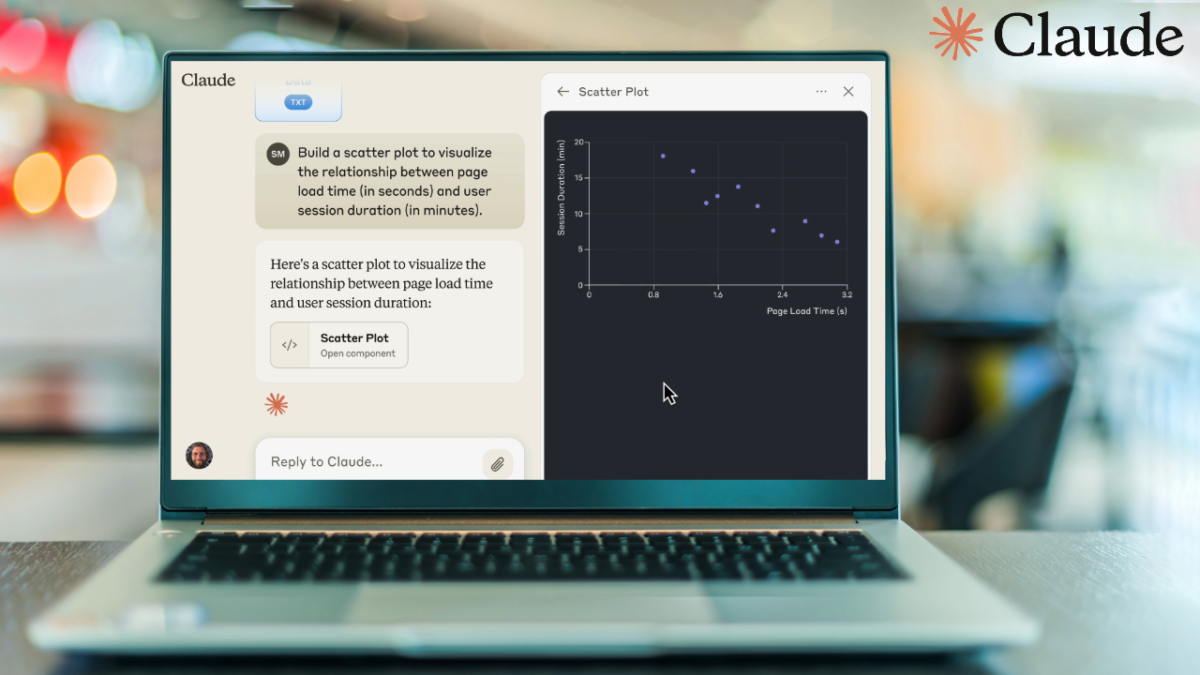
Claude AI assistant interface
Using Claude first means solving for intent and structure before pixels. The result: fewer dead-ends, faster iterations, and files that are already conceptually better when they land in Figma.
THE SHIFT: FROM PIXELS TO PROMPTS
Why an AI-first approach emerged
Design work is fundamentally about decisions: what content appears, how information is prioritized, which patterns solve the user's problem. Traditionally those decisions happen at three moments — research and framing, sketching/wireframing, and visual mockup. AI accelerates the first two. When I give Claude a clear brief — goals, constraints, user personas, technical limitations — it returns multiple structured solutions: sitemap suggestions, prioritized feature sets, microcopy, and low-fidelity layout options. That reduces the number of divergent, dead-end directions I would otherwise explore by hand.
Not replacing designers, amplifying them
Claude is not a shortcut to eliminate design skill. Think of it as an apprentice who can rapidly synthesize research, propose patterns, and annotate rationale. The designer remains the editor-in-chief: curating options, rejecting poor suggestions, and applying taste. The result is higher throughput without losing craft.
HOW CLAUDE FITS INTO A PRACTICAL WORKFLOW
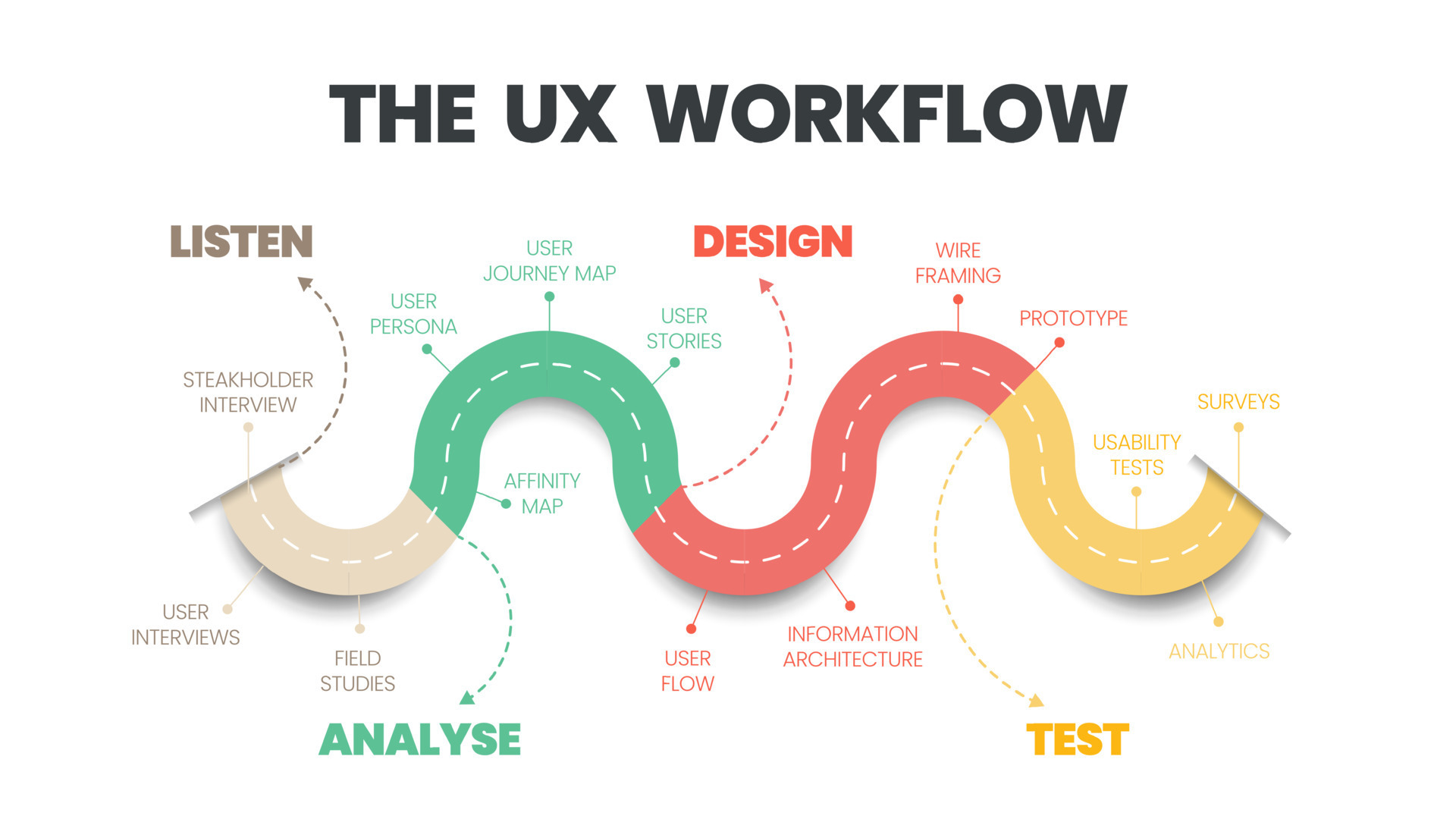
UI UX design workflow
Step 1 — Briefing the model
Start with a disciplined brief. I use a short template that fits into a prompt:
- Context: product area, platform, business goal.
- Users: primary persona, key tasks, pain points.
- Constraints: tech stack, accessibility targets, analytics metrics.
- Deliverables: low-fi layout options, microcopy, component list, edge cases.
Example prompt excerpt I use: "Design a mobile onboarding flow for a budget app aimed at first-time investors, focusing on trust-building, short task completion, and easy data entry. Provide 3 layout options with component lists and microcopy for empty states."
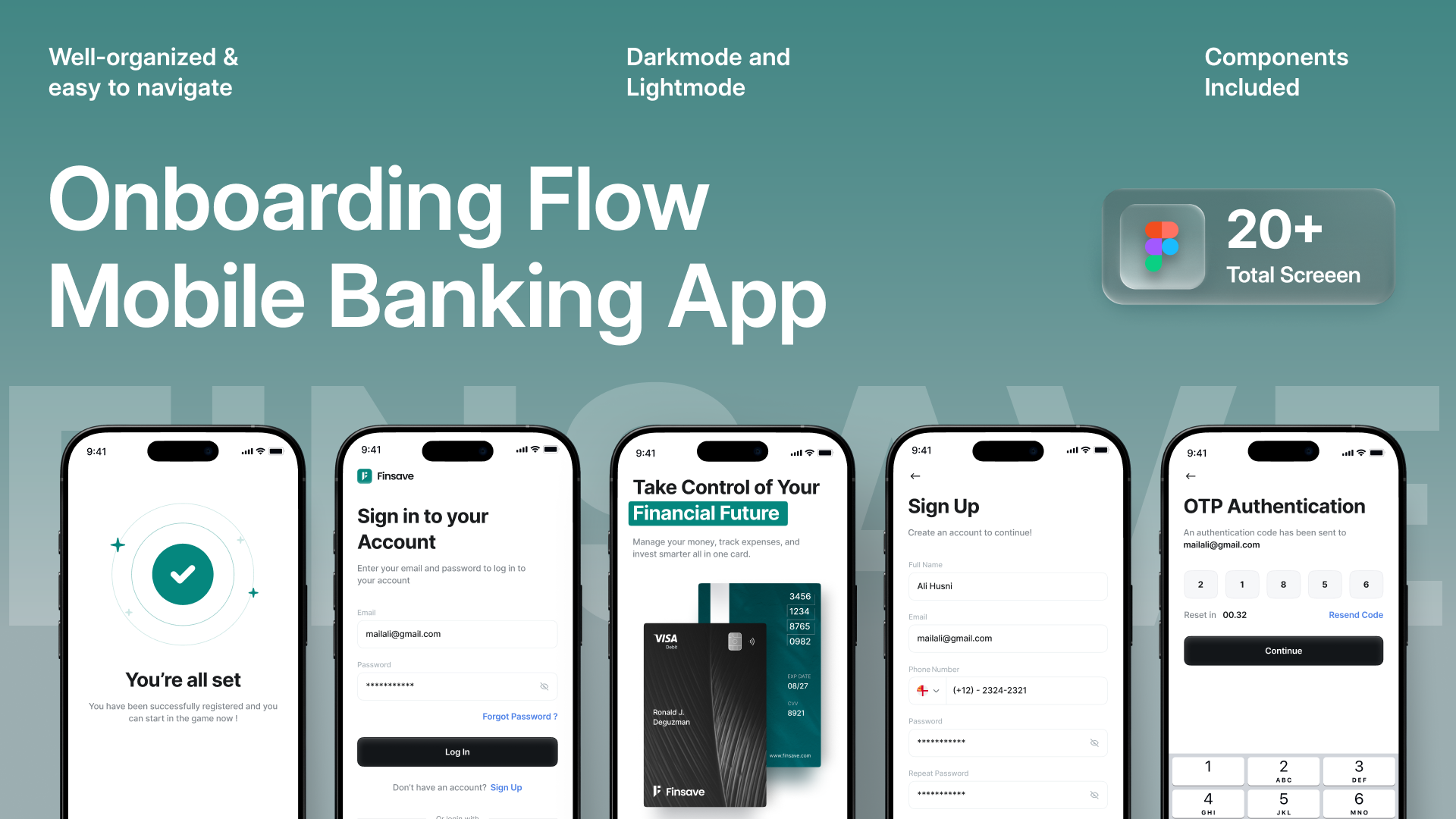
Mobile onboarding flow design
Step 2 — Iterate with structured prompts
Instead of open-ended brainstorming, I ask Claude to produce constrained outputs: A/B layout options, prioritized feature lists, progressive disclosure paths, and accessible form patterns. This yields structured artifacts I can test quickly with stakeholders or in guerrilla usability sessions.
Step 3 — Export to Figma (or not)
When an AI-generated layout feels right, I convert it into a working Figma file. That can be manual — translating Claude's suggestions into frames, components and tokens — or semi-automated using plugins or internal scripts that map annotated outputs to design system components. The key idea: by the time pixels are placed, the information architecture, content strategy and interaction map are already validated.
PRACTICAL BENEFITS I SEE DAILY
Speed and focus
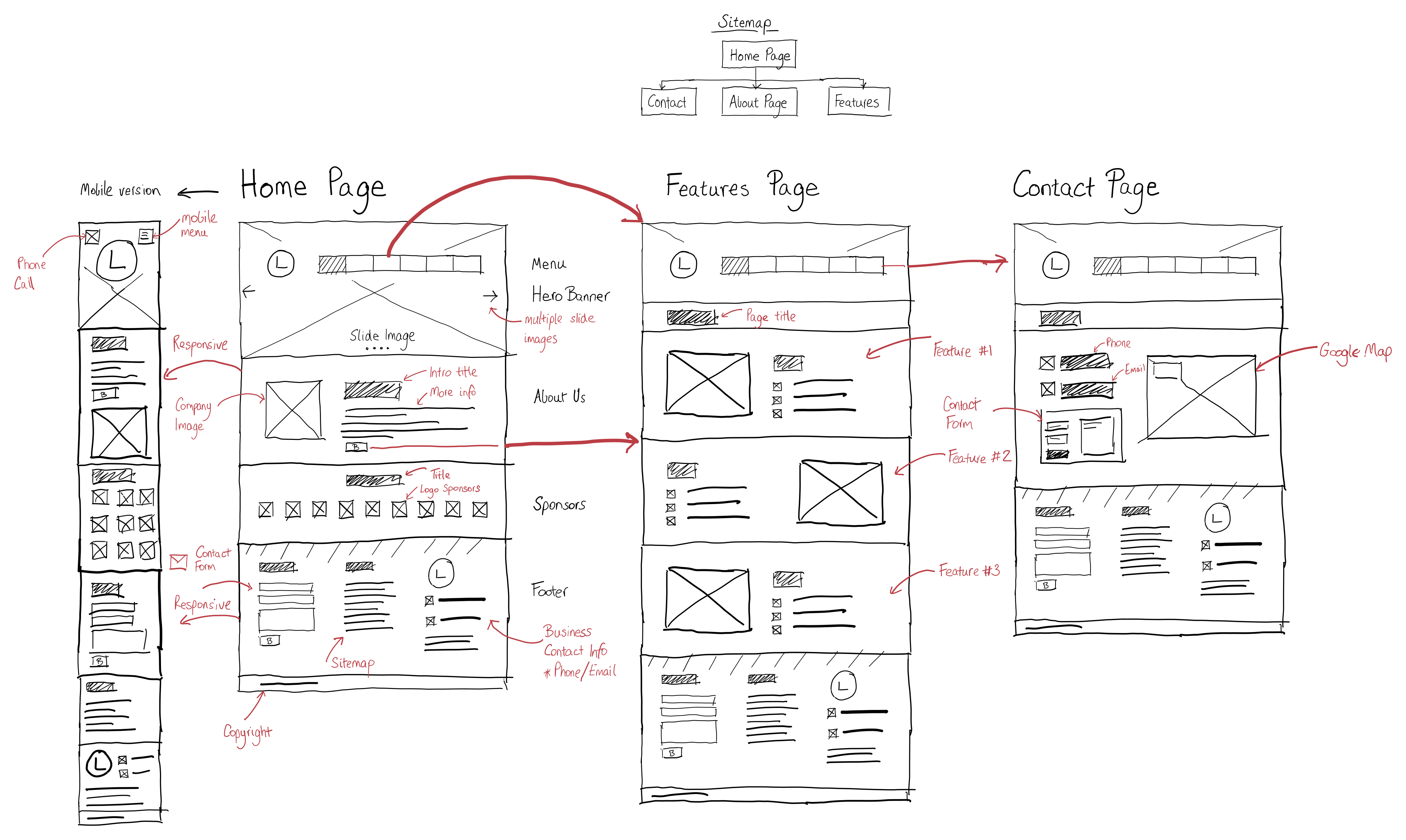
Claude compresses ideation time. Instead of three hours sketching flows, I can get 6 distinct, coherent proposals in 20–30 minutes. That upfront variety reduces the "false starts" that waste time inside Figma.
Prototyping wireframes design
Better microcopy and accessibility defaults
Generative models produce microcopy and accessibility suggestions (alt text, ARIA hints, label phrasing) as a part of the same output. That nudges accessibility earlier in the process rather than an afterthought during QA.
Consistent reasoning and documentation
Claude provides rationale for choices — why a three-step signup reduces cognitive load, or why progressive disclosure is better for sensitive inputs. Those rationales become versioned documentation attached to the Figma file, improving cross-functional clarity.
WHEN Figma STILL MATTERS
High-fidelity visual design and craft
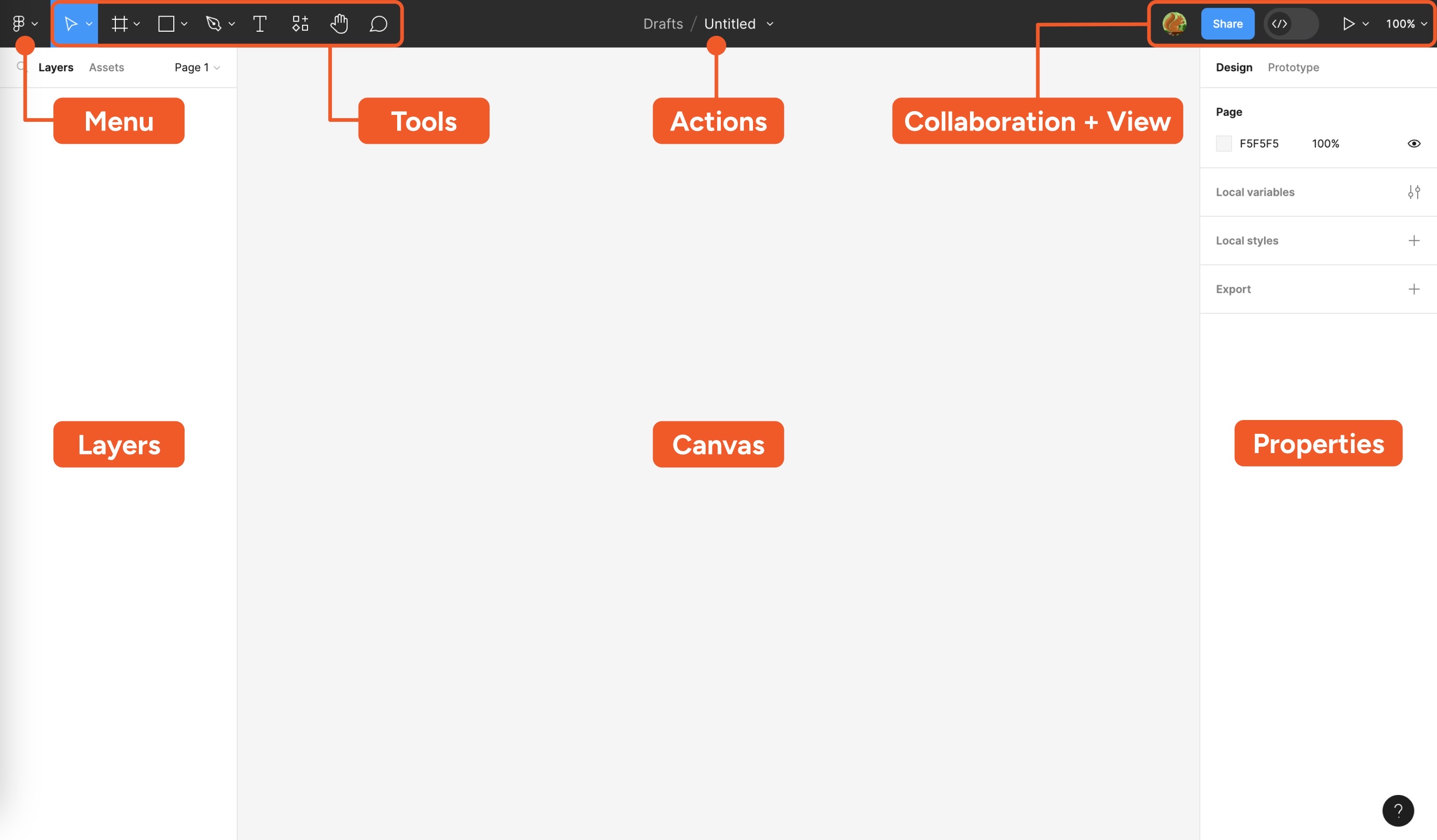
Figma wins for pixel-level typography, motion construction, and visual polish. Color systems, detailed accessibility testing, and final prototyping with device-specific interactions remain easier to validate inside Figma or the native prototyping tools teams use. Claude cannot yet match the tactile control of vector paths, mask operations and layout nudges that a seasoned visual designer applies in a production file.
Figma design tool interface
Collaboration and developer handoff
Designers, PMs, and engineers still use Figma as a single source of truth for specs and code extraction. While Claude helps prepare a cleaner, more thought-out file, Figma remains the canonical artifact for tokens, components and CSS/React code snippets during handoff.
Think of Claude as the idea engine and Figma as the assembly line. Both are necessary, but you may use them in a different order.
PROMPTS, TEMPLATES AND PATTERNS I USE
Prompt pattern: "Constraint → Outcome → Format"
A reliable pattern: give constraints, state the desired outcome, and request a structured format. Example: "Constraint: native iOS settings, Outcome: reduce time-to-task from 45s to 20s, Format: 3 numbered layout options with component lists and microcopy." That nudges the model toward actionable deliverables rather than philosophical essays.
A sample prompt for onboarding
"You are a senior product designer. Create a 3-screen mobile onboarding flow that builds trust, collects minimal user data, and reduces drop-off. Provide wireframe text, prioritized components, validation messages and one progressive disclosure alternative."
Extracting assets and tokens
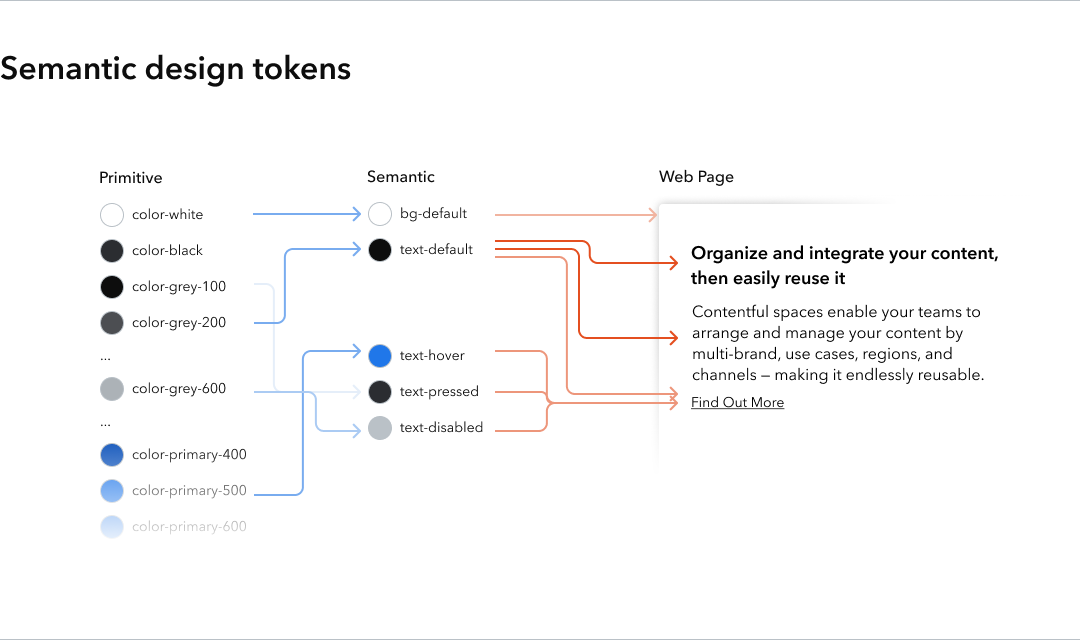
Ask Claude to list design tokens (colors, spacing scales, type hierarchy) and map them to semantic names: primary, surface, success, text-muted. That list becomes the basis for a design tokens file that I translate to tokens in Figma or my codebase.
Design system tokens
COLLABORATION, VERSIONING AND TRACEABILITY
Keeping team trust
Teams worry an AI-first process will reduce transparency. The opposite can be true if you attach the model outputs and the prompts used to the design file. I paste Claude's response as a single page or comment in the Figma file and timestamp it. Suddenly everyone can see the rationale and iterate on it, rather than guessing why certain decisions happened.
Version control and audit trails
Maintain a clear audit trail: prompt used, Claude response, designer edits, stakeholder sign-off. Those artifacts are invaluable for post-launch retrospectives and for keeping product managers reassured that decisions were deliberate.
LIMITATIONS, ETHICS AND RISK MANAGEMENT
Hallucinations and factual errors
Generative models can invent plausible but incorrect facts. When Claude proposes content that references laws, statistics or technical constraints, cross-check. I treat any factual claims as hypotheses; validation is part of my workflow.
Accessibility and bias
AI can reproduce design patterns and language that inadvertently exclude groups. Always audit language, labels and flows for bias. Use real user testing to catch inclusivity failures that a model won't reliably flag.
TACTICAL TIPS FOR TRANSITIONING
Start with a hybrid project
Pick a low-risk internal feature and run an AI-first sprint. Compare outcomes to a traditional sprint and document time saved, number of revisions, and team feedback. This builds credibility and surfaces process adjustments without betting the whole product.
Create a prompt library
Save prompts and Claude replies as templates. Over time you'll have a library for onboarding flows, admin pages, error states and microcopy prompts. That library is the real productivity multiplier.
- Faster ideation and more coherent concept sets early.
- Better initial documentation—microcopy and rationale included.
- Lower cost of early exploration compared to full Figma explorations.
- Not a replacement for visual craftsmanship and pixel work.
- Risk of factual errors and bias without checks.
- Tooling gaps for direct export to component libraries are still common.
MEASURING SUCCESS
Quantitative signals
Measure cycle time (brief to prototype), iteration count, and time spent in Figma on rework. Early projects I ran saved roughly 30–50% of early-phase time, though exact numbers depend on team discipline and how cleanly prompts are written.
Qualitative signals
Collect stakeholder interviews about clarity of rationale, perceived decision quality, and developer feedback on spec completeness. If engineers spend less time asking clarifying questions, that's a strong leading indicator of success.
A LOOK AHEAD: WHERE THIS APPROACH GOES NEXT
Smarter integration with design systems
I expect tighter integrations where models can output annotated components that map directly to a company's design system tokens and variants. When that happens, the friction from prompt → Figma will shrink further.
Interactive prototyping from prompts
Imagine requesting a flow and receiving not just frames but an interactive prototype with stateful logic and basic animations. That future shortens the loop from concept to research-ready prototype.
CONCLUSION
The claim "I design with Claude more than Figma" is provocative but accurate for how I work: Claude drives the early decisions and Figma completes the craft. That ordering reduces rework, improves documentation, and lets designers focus on high-value visual decisions. This isn't a one-size-fits-all prescription. For visual direction and final production, Figma still reigns. But if you want to move faster, test more ideas, and keep rationale attached to artifacts, integrating Claude as your first step is a practical, powerful choice.
- Use Claude to surface structured options, microcopy, and tokens before opening Figma.
- Maintain traceability by saving prompts and model outputs alongside design files.
- Validate any factual or regulatory content; keep human review mandatory.
- Start hybrid, measure cycle time and developer questions, and iterate on a prompt library.
Design workflow notes and examples drawn from daily practice — adapt to your team and product.