
HP Laptop Advertised as 1TB but Only Shows 64GB Local Storage — What to Do
When you open the box, power up the new HP laptop and check This PC, you expect to see the amount of storage advertised on the product page. Instead you find 64 GB of local storage and a separate message offering 1 TB of OneDrive cloud space. For many buyers that feels like bait-and-switch: was the machine promoted as "1 TB storage" intentionally ambiguous, or is there a real misunderstanding about what storage means in 2026?
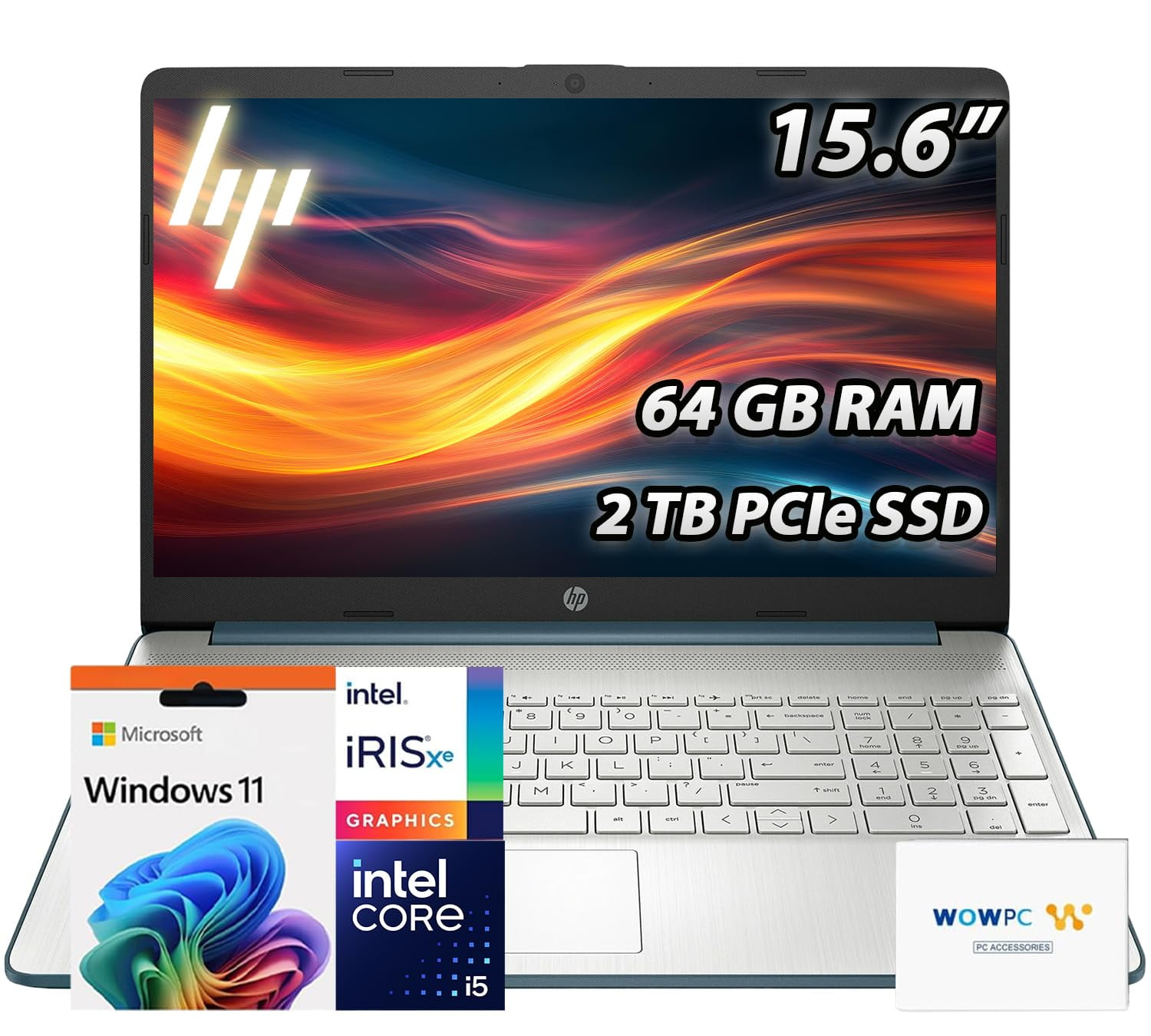
HP laptop with 64GB SSD
The short answer: manufacturers and retailers sometimes advertise combined local plus cloud storage in ways that sound like a single, physical drive. The longer answer is nuanced: marketing language, operating system features like OneDrive Files On-Demand, and hardware trade-offs collide to create confusion. This article explains how that happens, how to check the facts on your own machine, immediate steps to free or expand local storage, and what consumer remedies are available if you feel the advertising was misleading.
How Ads, OneDrive, and Local Storage Get Blended Together
What manufacturers mean when they say "1 TB"
Product pages often highlight the total amount of storage tied to a laptop, but they don’t always make clear the split between physical drive space and cloud subscription. A common phrasing is "Includes 1 TB of cloud storage" or "1 TB total with OneDrive for 12 months." To marketers, that increases perceived value and allows them to advertise large-sounding numbers without the cost of a bigger SSD. To consumers it can read as if the laptop itself contains that full capacity.
OneDrive cloud storage confusion
How OneDrive Files On-Demand contributes to the confusion
Windows’ OneDrive Files On-Demand can show placeholders for files that live in the cloud but appear in File Explorer as if they occupy local space. Because placeholders help you browse and open cloud files instantly, many users assume more local capacity than actually exists. That appearance—combined with marketing copy—creates the impression of a single large storage pool when in reality the machine may only have 64 GB of physical flash storage and rely on online storage for the rest.
How to Verify Exactly How Much Local Storage You Have
Quick checks inside Windows
Before you do anything else, verify the physical storage using Windows built-in tools. These quick checks confirm what the machine actually contains:
- This PC: Open File Explorer and click "This PC." Under "Devices and drives" you’ll see the main drive labeled (usually C:) and the available space. This reflects local storage, not cloud-only space.
- Settings → System → Storage: Shows how Windows and apps are using local disk space. If you only have 64 GB total, this view will make that clear.
- Disk Management: Right-click the Start button and choose "Disk Management." This shows physical disks, partitions, and total capacity reported by the hardware. If the disk is 64 GB, you won’t find a hidden physical terabyte here.
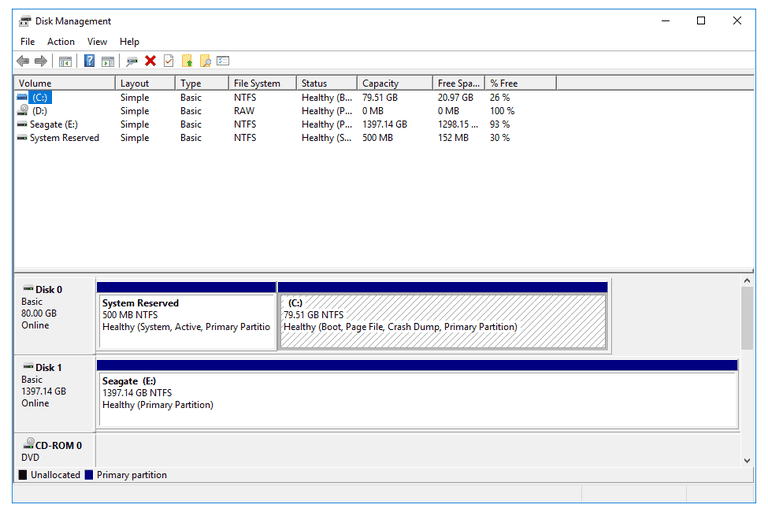
Windows Disk Management screenshot
Interpreting OneDrive indicators
Files that are online-only display a cloud icon next to their names; files stored locally show a green check. If you right-click a OneDrive file you can choose "Always keep on this device" (which downloads it) or "Free up space" (which makes it online-only). Those icons indicate where files physically reside.
If Disk Management reports a single 64 GB disk, the advertised "1 TB" is cloud capacity—not a physical upgrade you can open and use without buying new hardware.
Why Some HP Laptops Ship with 64 GB Local Storage
Cost and product segmentation
Manufacturers price entry-level models to hit aggressive price points. Using a small eMMC or 64 GB SSD lowers hardware costs and yields acceptable performance for basic tasks—web browsing, document editing, streaming—especially when manufacturers expect cloud storage to handle large media files. Higher-capacity NVMe SSDs are reserved for midrange and premium SKUs.
User behavior assumptions
OEMs assume average users rely more on cloud services and streaming than on local large media libraries. That assumption justifies offering smaller local drives paired with cloud accounts. But assumptions about behavior don’t absolve ambiguous advertising.
Practical Steps to Reclaim or Expand Local Storage
Free up space now
If your laptop is already running low, do this first:
- Run Storage Sense: Settings → System → Storage → Storage Sense. Use it to remove temporary files and clean the Downloads folder automatically.
- Uninstall unused apps: Many preinstalled programs take space. Remove the ones you don’t need via Settings → Apps.
- Offload media: Move photos, videos, and large documents to OneDrive (online-only) or an external drive.
Options to expand storage
Depending on the model, you may have several upgrade paths:
- Replace the SSD: Some HP laptops allow NVMe or SATA SSD upgrades. Check the service manual for your model, or consult a technician. Replacing a tiny 64 GB drive with a 256 GB or 512 GB NVMe significantly improves capacity and performance.
- Use microSD or external SSD: Many thin-and-light laptops include microSD slots. An external USB-C SSD offers fast, portable storage without internal surgery.
- Manage OneDrive settings: Keep large files online-only using Files On-Demand to preserve local space while retaining seamless access.
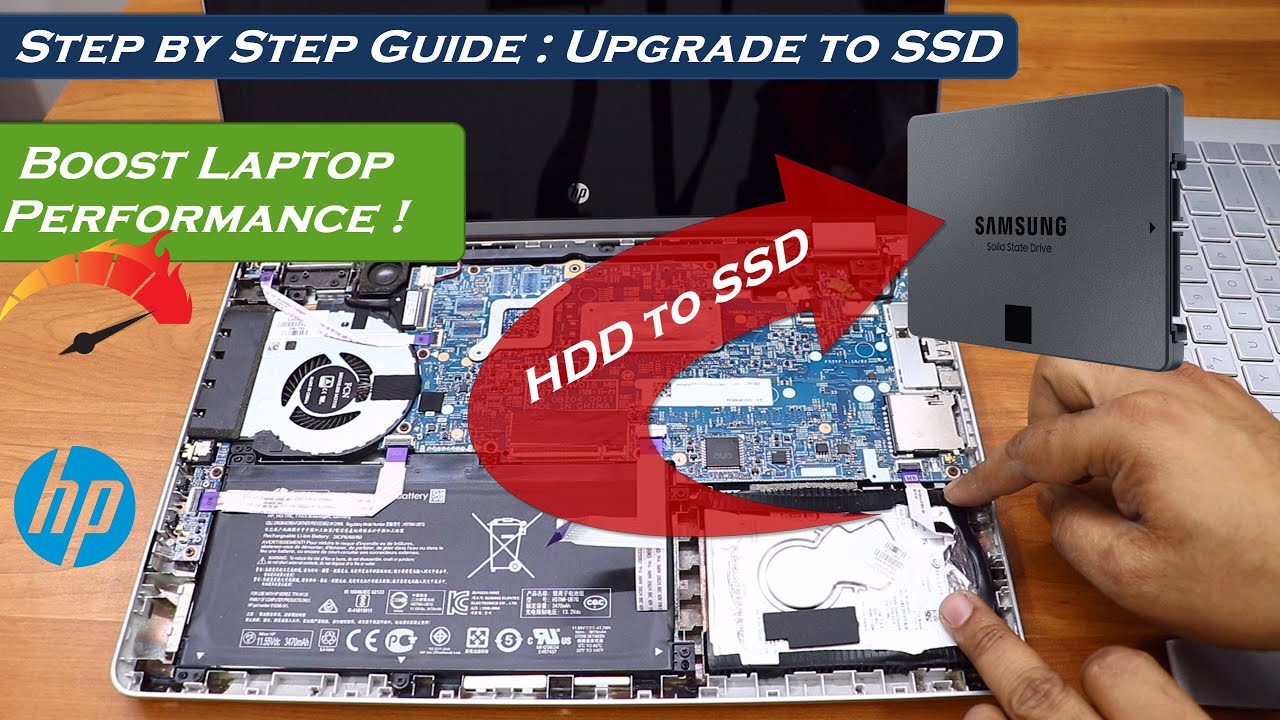
HP laptop upgrade SSD guide
When to seek a higher-spec model instead
If you frequently edit large photo/video files, run virtual machines, or store extensive offline music or game libraries, a model with a physically larger SSD is the right choice. Upgrading may be cheaper in the long run than coping with constant storage juggling.
What to Do If You Believe the Advertising Was Misleading
Document the discrepancy
Gather evidence: screenshots of the product page and specs, photos of the box and stickers, and screenshots of Disk Management showing the actual installed drive. That documentation will be useful when contacting the retailer, HP support, or your card issuer.
Contact the seller and HP
Explain the discrepancy and request clarification or a remedy—refund, exchange, or upgrade. Be polite but firm. Many retailers will offer a return or exchange for a higher-spec model, and OEM support may provide guidance on upgrades or returns if the listing was ambiguous.
Escalation options
If the seller refuses to remedy a clearly misleading claim, you can:
- Request a chargeback through your credit card issuer (explain the product was materially misrepresented).
- File a complaint with consumer protection agencies in your jurisdiction. Keep communication records and evidence.
How to Avoid This Problem on Your Next Purchase
Check raw hardware specs carefully
Don’t rely on promotional blurbs. Look for these specifics on the spec sheet before you buy:
- Storage type and capacity: Is it eMMC, SATA SSD, or NVMe SSD? eMMC typically signals lower capacity and lower upgradeability.
- Local drive size: Confirm the physical drive capacity (for example, "64 GB eMMC" vs "512 GB NVMe SSD").
- Cloud offerings: Note whether the listing explicitly says the 1 TB is OneDrive cloud storage and whether it’s temporary (e.g., 1 year with Microsoft 365).
Ask these questions before you buy
Contact the seller or chat with support and ask bluntly: "Does the advertised 1 TB refer to local storage on the device, or to a cloud subscription?" If you don’t get a clear answer, consider another model.
A Practical Example: Moving from Confusion to Control
Imagine you bought a budget HP laptop advertised with "1 TB storage included." After unboxing you find 64 GB local storage and a OneDrive prompt. Following the steps above you:
- Verify with Disk Management that the physical disk is 64 GB.
- Take screenshots of the product page and specs showing ambiguous language.
- Contact the seller and ask for an exchange for a model with a larger internal SSD.
- In the meantime, move media to OneDrive online-only and buy a portable 1 TB external SSD for local media editing.
That combination—cloud for archival and an external SSD for active projects—keeps the machine usable while you arrange an exchange or internal upgrade.
- Lower cost gets you a lighter laptop with acceptable battery life.
- Cloud integration simplifies backups and syncing across devices.
- Small local SSD limits offline work and software installs.
- Ambiguous marketing can cause unexpected out-of-box frustration.
Conclusion: Know What You’re Buying, and Act Fast If It’s Not What You Expected
Advertising that combines local and cloud storage in a single headline number benefits retailers and OEMs, but it can mislead buyers who expect a physical terabyte on the device itself. The remedy is practical: check Disk Management, confirm the advertised split in the product specs, and decide whether to accept a 64 GB local drive with cloud help or to return/upgrade the machine.
- "1 TB" in marketing may mean 64 GB local + 1 TB OneDrive cloud, not a physical 1 TB SSD.
- Verify local storage using This PC and Disk Management immediately after unboxing.
- Free up space or upgrade with a new SSD, microSD, or external drive if needed.
- Document ambiguous adverts and contact the seller or card issuer if you need a refund.
- For heavy offline workloads, buy a model with a large NVMe SSD to avoid cloud dependence.
Whether you accept a compact, cloud-centric laptop or insist on a physically larger drive, the key is awareness. Manufacturers and retailers have incentives to highlight bundled cloud services; your incentive is to read the fine print, verify hardware specs, and choose the option that fits your workflow. If you were surprised by an HP laptop that advertised 1 TB and delivered 64 GB locally, you’re not alone—and you now have a clear path to resolve it.